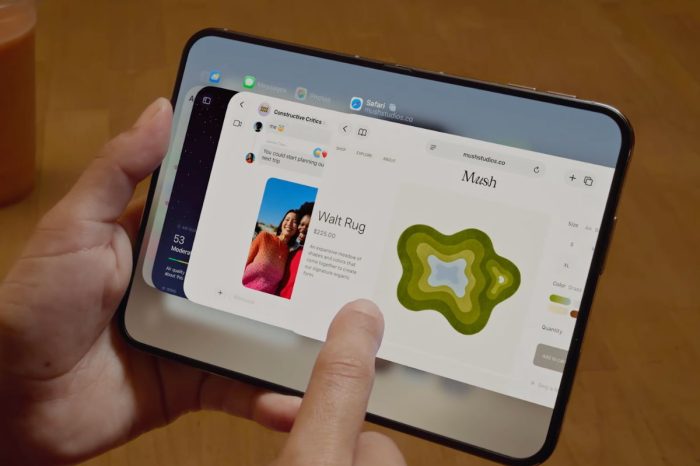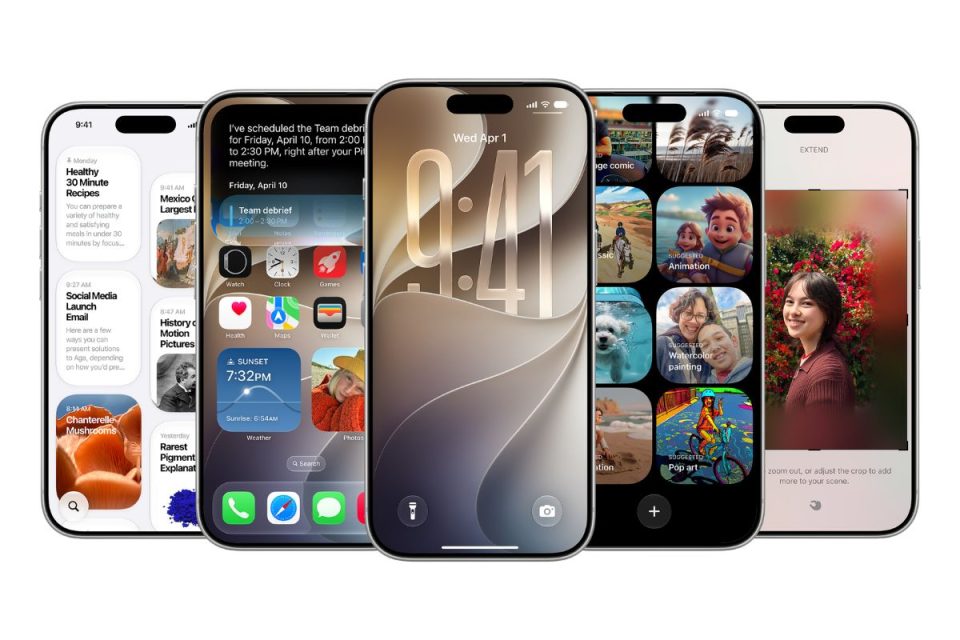
More of Apple’s iPhone apps support landscape orientation in iOS 27, allowing them to make better use of the wider screen when you rotate your device sideways.
Expanded landscape support includes Apple apps such as Music, Podcasts, Fitness, Health, Reminders, Home, Shortcuts, Find My, Weather and Voice Memos, although the exact layout and supported screens vary between apps.
If an app supports the new layout, switching between portrait and landscape can be as simple as rotating your iPhone once orientation lock is disabled.
How to use landscape mode on iPhone in iOS 27
- Open Control Center on your iPhone.
- Make sure Portrait Orientation Lock is turned off.
- Open an Apple app that supports landscape mode.
- Turn your iPhone sideways.
- Wait for the app interface to rotate into its landscape layout.
- Turn the iPhone upright again when you want to return to portrait view.
Some apps only support landscape orientation on particular screens. For example, an audio app may rotate its player while leaving other parts of the app in portrait orientation.