How to play Euro Truck Simulator 2 on a Mac using a PlayStation 4 (PS4) controller
 The Apple Post
Posted On 23/03/2019
The Apple Post
Posted On 23/03/2019 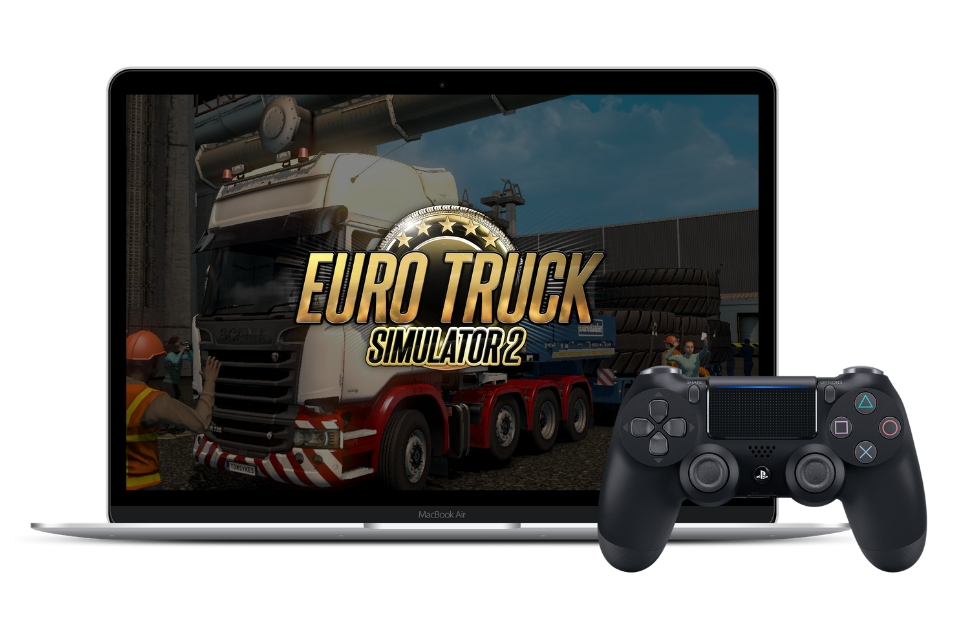
Euro Truck Simulator on Mac has been around since 2015, however not many players know that asides from controlling your truck via the keyboard of your Mac, you can also drive using the controller for your PlayStation 4.
Crowned one of the best simulators ever made, ETS 2 allows players to climb behind the wheel of some of the most popular trucks and trailers seen across Europe and create their own virtual trucking company with a fleet of trucks and trailers across 71 cities in twelve different countries.
Driving can sometimes be a bit of a challenge, especially when you’re using the keyboard of your Mac to steer and control your vehicle; however, by connecting a PlayStation DualShock 4 Controller to your Mac you can really take control of your truck like never before without having to buy a costly physical steering wheel.

Going from years of driving using upwards, downwards, leftwards and rightwards buttons on a keyboard to now using a PS4 controller is incredible! Turning corners are so much smoother, and it’s much easier to apply small amounts of acceleration and adhere to speed limits. – Here’s how to play Euro Truck Simulator 2 on a Mac using a PlayStation 4 (PS4) controller.
How to connect your PS4 controller with your Mac
- Open System Preferences on your Mac by pressing the icon found in the top left menu bar
- Once this opens, click Bluetooth to see a list of all pair devices
- Grab your PlayStation DualShock 4 Controller and put it into Discovery Mode by simultaneously holding down the PlayStation button and Share button at the same time until you see the light on your controller quickly flash
After the controller flashes you’ll then see “Wireless Controller” added to the Mac’s list of paired Bluetooth devices.
How to configure your PS4 controller to work with Euro Truck Simulator 2
- Open Euro Truck Simulator 2 on your Mac and Continue Game or Create New Profile
- Once the game loads you’ll be taken to the screen which allows you to view the Job Market, World Map, Vehicle Browser and Company Overview. From this page, select Options and press Controls from the options overview
- Select Input Wizard from the Controls page and choose Controllers
- Click Gamepad or Joystick from the Controller Menu and select a Gearbox Type
Once you select a Gearbox Type you’ll be moments away from playing Euro Truck Simulator 2 on Mac with your PS4 controller. All that is left to do is choose which buttons do what, for example – you can choose to sound the horn by pressing the analog sticks, or accelerate and break by holding the rear L2 and R2 triggers.
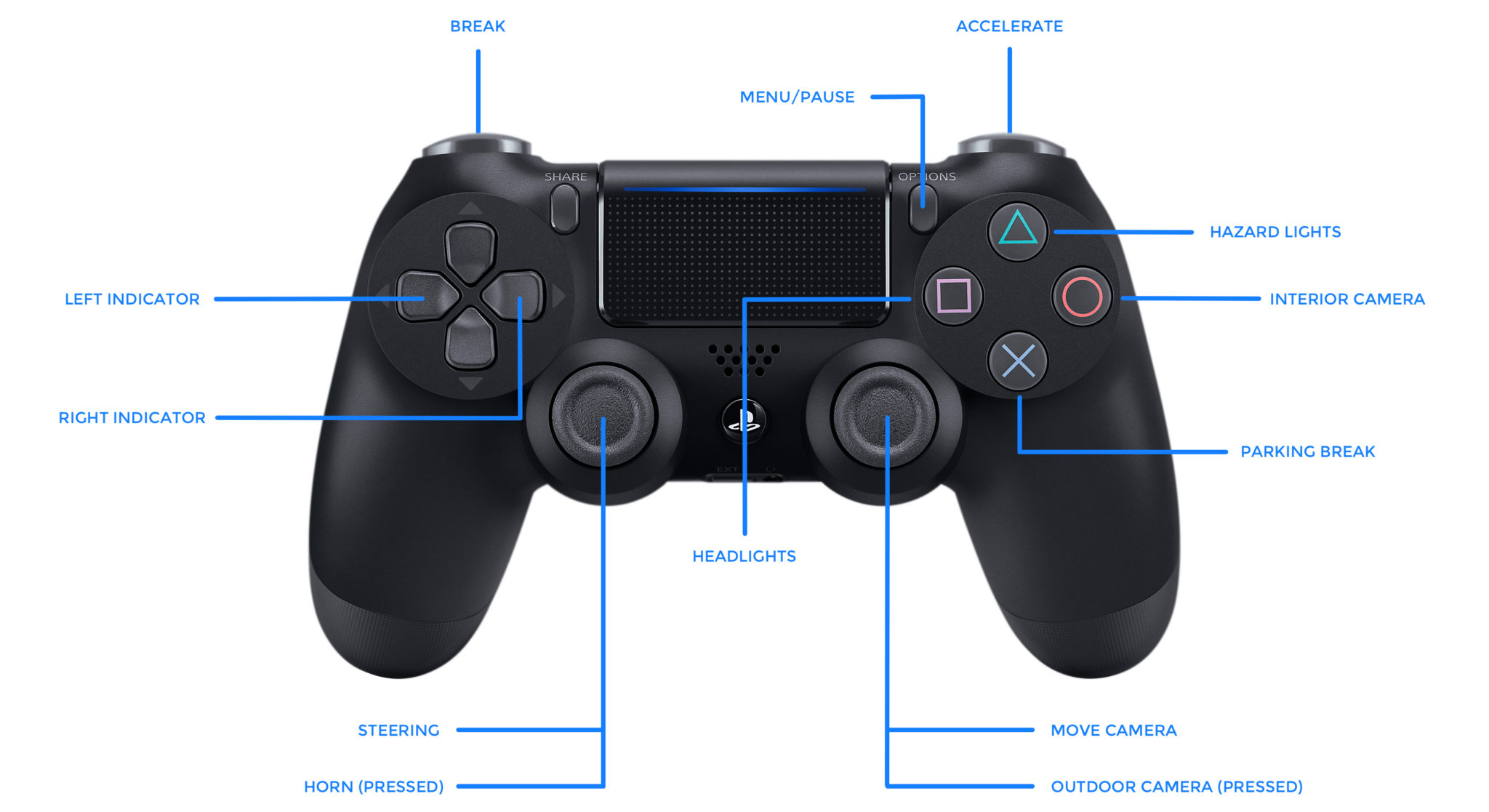
Euro Truck Simulator 2 – PlayStation 4 Controller Map
Asides from steering, accelerating and breaking which are set using the Controls page within Options, a lot of the controller button setup is done by selecting Options and Keys & Buttons. This screen allows you to select a preferred key on your keyboard for the horn (H by default) and select a secondary key, which in this instance would be a button on your controller.
There’s no right or wrong way to configure your controller with Euro Truck Simulator 2, it’s all down to personal preference. Once you finish creating your desired controller layout you’re ready to hit the road and start trucking!