Losing your Apple TV Remote is frustrating, but if you’ve got a recent iPhone, you can track it down in seconds using a built-in feature.
Apple lets you locate a Siri Remote (2nd generation or newer) directly from your iPhone, as long as both devices are running up-to-date software. Your iPhone needs to be on iOS 17 or later, and your Apple TV must be updated to tvOS 17 or newer.
To get started, open Control Centre on your iPhone. If you’re using an iPhone with Face ID, swipe down from the top-right corner of the screen. On older models with a Home button, swipe up from the bottom of the display.

Once you’re in Control Centre, tap the Apple TV Remote icon. This will bring up the remote interface on your iPhone.
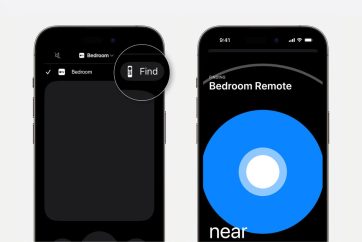
From there, tap the device list at the top of the screen and select your Apple TV. If your remote is supported, you’ll see a “Find” option next to it. Tap this to begin locating your remote.
Your iPhone will then guide you to it using an on-screen indicator. As you move around, a circle will grow larger the closer you get. The text will also update from “far” to “near” to “here,” helping you pinpoint the exact location.
This feature works a bit like a built-in tracker, making it much easier to find a remote that’s slipped between cushions or been left in another room.
If you can’t find your remote at all, you can still control your Apple TV directly from your iPhone using the same Apple TV Remote tool in Control Centre.


Trending Now