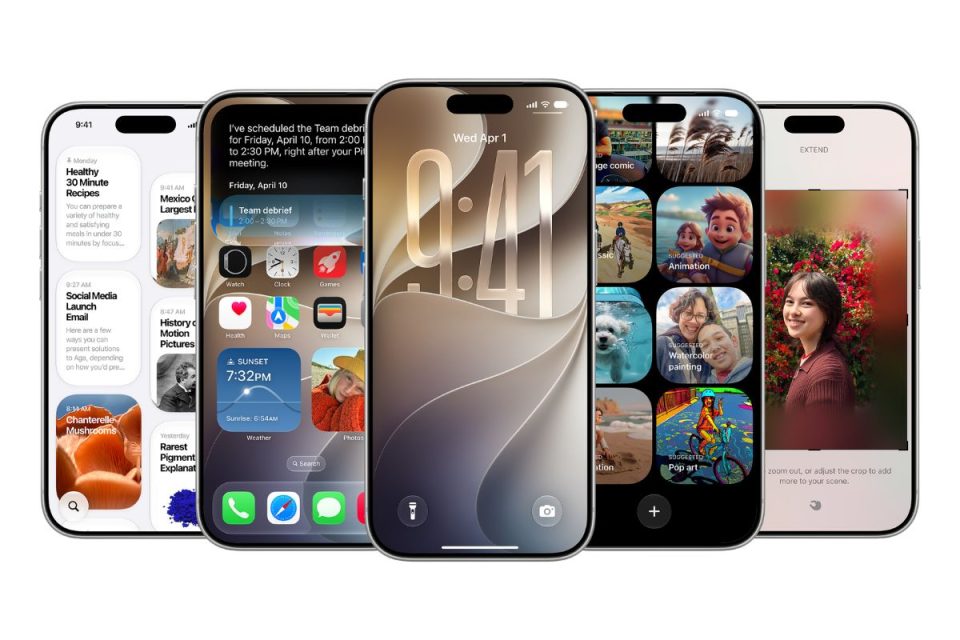
iOS 27 introduces an extra-large widget size for the iPhone Home Screen, giving supported apps considerably more room to display information, photos and controls.
An extra-large widget can occupy an entire Home Screen page, making it useful for apps where you want information to be visible at a glance rather than opening the app. Apple apps including Music, Photos, Weather and Calendar support larger widget experiences.
The available sizes depend on the widget and app you choose, so the extra-large option will only appear when the developer has provided support for it.
How to add an extra-large widget in iOS 27
- Touch and hold an empty area of your iPhone Home Screen until the icons enter edit mode.
- Open the widget gallery.
- Choose the app whose widget you want to add.
- Browse the available widget sizes and select the extra-large layout when available.
- Add the widget to the Home Screen and position it on the page you want to use.
- Finish editing the Home Screen to save your layout.
If the extra-large size is not shown for a particular app, try another widget or check again after the app has been updated, as widget sizes are determined by each app’s available layouts.