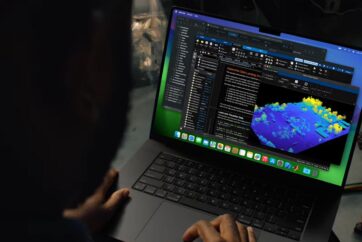
You can shop online through Safari on Apple HomeView, and supported stores even let you pay with Apple Pay. There’s one important difference from checking out on iPhone: the payment is confirmed on your paired iPhone rather than directly on the shared display.
What you need before making a purchase
Make sure Apple Pay is already set up in Wallet on your iPhone, and that the iPhone is properly paired with HomeView. You’ll also need to visit a website that offers Apple Pay as a checkout option. Apple explains how to set up Apple Pay on iPhone.
Pay for something in Safari on HomeView
Open Safari on HomeView, browse to the online store and proceed to checkout. When Apple Pay appears, tap its checkout button. On your paired iPhone, tap Confirm Purchase and follow the on-screen steps to authorize the payment. Apple documents this feature in the HomeView User Guide.
The iPhone approval step means HomeView isn’t independently authorizing purchases just because someone can use its screen. If Apple Pay isn’t offered, check that the store supports it, that you’ve set up a valid payment method on iPhone and that both devices are correctly paired.
For more about HomeView’s built-in web browser, read our coverage of HomeView apps and our complete HomeView guide.