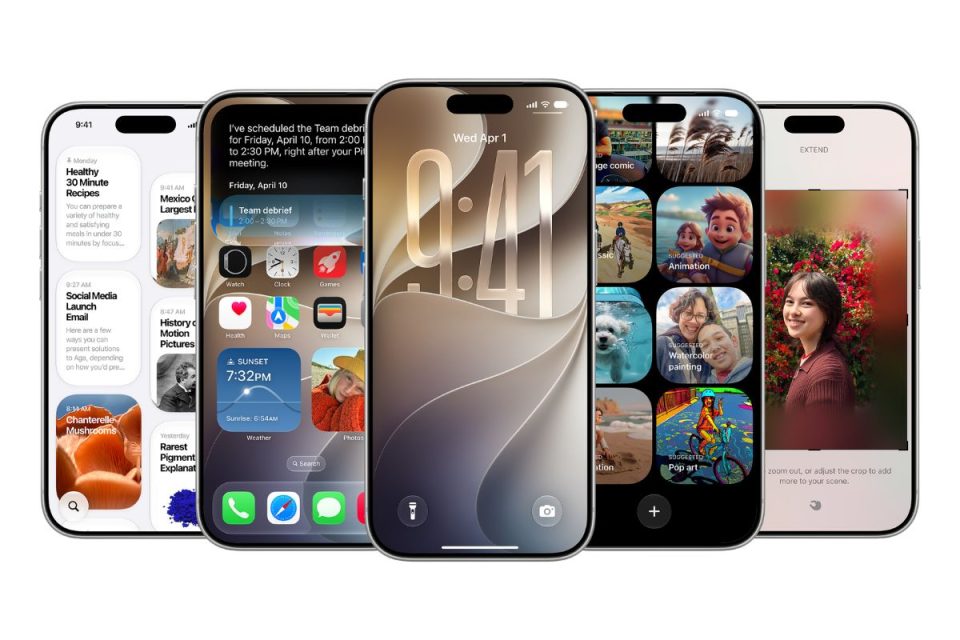
Apple’s Clean Up tool receives a significant upgrade in iOS 27, making it better suited to removing larger unwanted objects and distractions from pictures on compatible iPhones.
Clean Up analyzes the surrounding parts of a photograph and replaces the area occupied by the selected object. That can make it useful for removing background distractions, people or other elements that take attention away from the subject.
The Apple Intelligence-powered editing feature requires a supported iPhone, and results will vary depending on the complexity of the photograph.
How to use Clean Up in iOS 27
- Open the Photos app.
- Choose the photo containing the object you want to remove.
- Tap Edit.
- Select Clean Up.
- Tap, brush or circle the object you want Photos to remove.
- Wait while Apple Intelligence analyzes the image and fills the selected area.
- Repeat the process on any remaining distractions if necessary.
- Tap Done when you are happy with the result.
If the edit does not look natural, undo the selection and try highlighting a smaller area before saving the image.