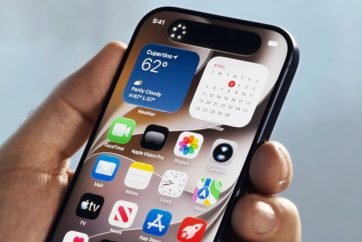
Setting up a new Apple HomeView begins with an iPhone or iPad and the Apple Home app. Before you turn on the display, it’s worth checking a few requirements, particularly your software version and your permissions in the home you’re adding it to.
What you need before setting up HomeView
Apple says setup requires an iPhone running iOS 27.2 or later, or an iPad running iPadOS 27 or later. Sign in to your Apple Account, turn on Bluetooth and connect the device to Wi-Fi. You must also be the Resident (Owner) of the home to which HomeView will be added. These requirements are listed in Apple’s official HomeView setup guidance.
To check your role, open the Home app on iPhone or iPad, tap the More button, select Home Settings and look under your name. If you haven’t set up a home before, the Home app can guide you through creating one and automatically assigning you the owner role.
Connect HomeView to your home
Power on HomeView using the included cable and adapter and follow the setup instructions shown on the display and your iPhone or iPad. Keep your mobile device nearby, with Wi-Fi and Bluetooth enabled. HomeView automatically becomes a home hub during setup, allowing supported accessories to be controlled remotely and automated, according to Apple’s home hub instructions.
If setup cannot continue, first confirm you’re using the required software, the correct Apple Account and a working Wi-Fi connection. Check our complete HomeView guide for a broader introduction and our guide to Apple Home accessories for what happens once devices are added.