iOS 27 adds something that iPhone users have never had before: a dedicated Siri app sitting alongside Apple’s other apps on the Home Screen.
At first glance, that raises an obvious question. If you can already summon Siri with your voice or the Side button, what are you actually supposed to use the Siri app for?
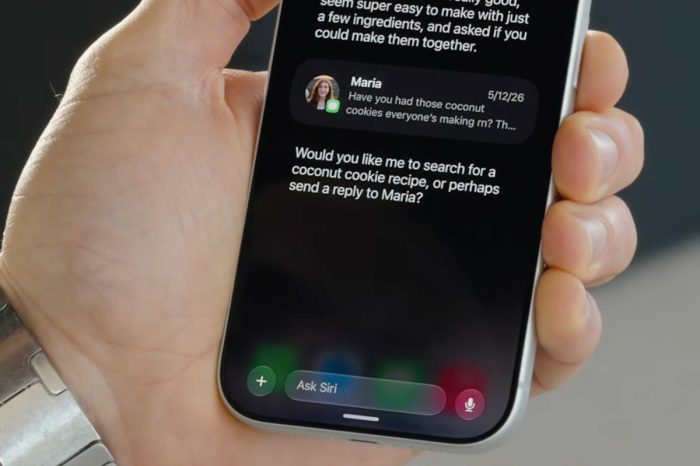
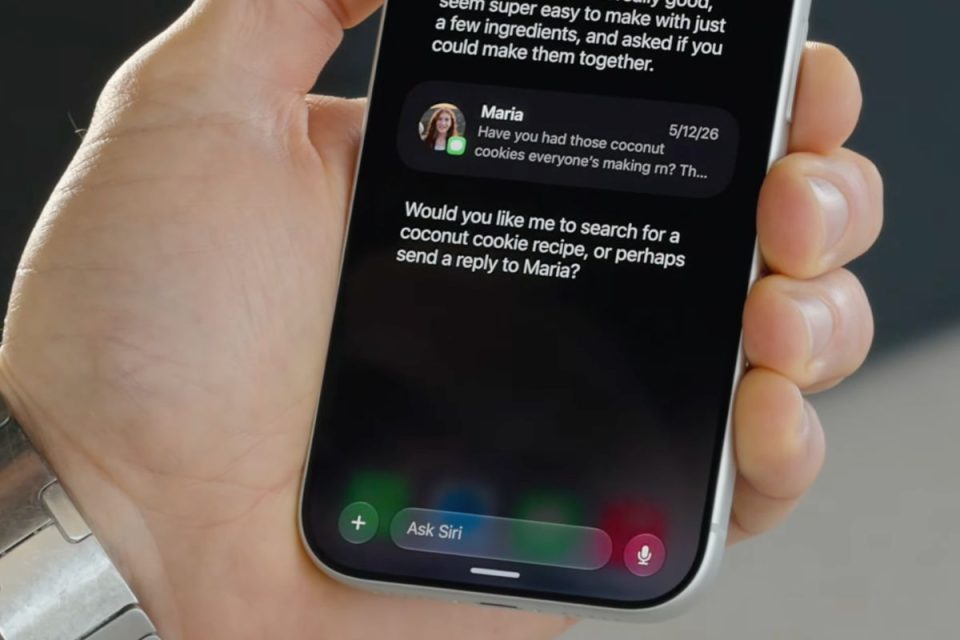
The answer is that the new app isn’t simply another button for launching Siri. It acts as the home for Siri AI conversations, giving Apple’s assistant a much more traditional chat interface where you can start conversations, return to previous ones and continue asking follow-up questions.
Open the Siri app and you’ll see a history of conversations you’ve had with Siri AI. You can reopen one of those conversations and continue where you left off, or start a completely new conversation from the app.
That makes Siri behave much more like the conversational AI assistants people have become accustomed to using. Instead of every interaction feeling disposable, longer conversations can be revisited later.
Apple uses iCloud to privately sync Siri conversation history between your Apple devices. That means a conversation started on iPhone can be picked up later on a compatible iPad, Mac, Apple Watch or Apple Vision Pro signed in to the same Apple Account.
The app becomes more useful once you start taking advantage of Siri AI itself.
You can ask Siri questions about virtually any topic, with the assistant able to use broad world knowledge and retrieve up-to-date information from the web when necessary. You can ask follow-up questions without repeatedly explaining the context of the conversation.
Siri AI can also use information already on your iPhone to answer much more personal questions.
Apple calls this personal context understanding. Siri can search information across apps including Messages, Mail, Photos, Calendar, Notes and Reminders to find something you previously received or saved.
You could ask Siri to find photos from a particular trip, look for a restaurant somebody recommended in a message, find details of a flight from an email or work out when you need to leave to collect somebody based on information already in your calendar.
The important difference is that you don’t necessarily need to remember where that information is stored. Instead of manually searching Mail, Messages and Calendar individually, you can describe what you’re looking for to Siri.
You can also give Siri AI more to work with directly inside a conversation. The Siri app supports adding photos and files, allowing you to ask questions about the content you’ve provided.
For example, you could give Siri a document and ask it to summarize the contents, ask questions about information contained within it or use it as context for a wider conversation.
Siri’s onscreen awareness extends the same idea beyond the dedicated app.
When something is already displayed on your iPhone, Siri can understand the content you’re looking at. That could mean asking about an image, PDF, email or other information on screen without having to describe it first.
Apple demonstrates this with examples such as looking at a photograph of food and asking Siri what it is and how to make it. You can then continue the conversation and ask Siri to add the ingredients to your shopping list.
This highlights another major part of Siri AI: it isn’t limited to answering questions.
Siri can take actions across apps, including creating reminders and calendar events, sending messages and working with information it finds. Apple says the new system supports considerably more app actions than previous versions of Siri.
That means a conversation can move from finding information to doing something with it. You might ask Siri to plan a menu for an event in your calendar, refine the suggestions and then ask it to send the finished plan to a group chat.
Writing is another major use for Siri AI, although it isn’t restricted to the Siri app.
Write with Siri can generate text from scratch, summarize information, proofread something you’ve written or help rewrite it. In Mail and Messages, Siri can even adapt generated writing based on how you normally communicate with a particular person.
You can ask it to write an itinerary for a trip, improve a message, summarize a long piece of information or give feedback on something you’ve written, then continue refining the result through follow-up requests.
The dedicated Siri app therefore makes the most sense for interactions you might want to return to.
For something immediate, such as setting a timer, turning on a light or asking about the weather, invoking Siri normally remains quicker. For research, planning, working with a document or having a longer conversation, opening the Siri app gives those interactions somewhere persistent to live.
There are some important limitations.
Siri AI remains in beta and requires an Apple Intelligence-compatible iPhone. Apple currently supports it on iPhone 15 Pro and iPhone 15 Pro Max, the iPhone 16 lineup and later compatible models, including iPhone Air and iPhone Duo.
Availability also varies by language and region. Siri AI launched in English, with Apple expanding language support over time, and it is not currently available on iPhone for users whose Apple Account region is in the European Union.
Apple also says some Apple Intelligence features that use its server-side models are subject to usage limits.
For supported users, though, the Siri app changes something fundamental about Apple’s assistant. Siri is no longer limited to a voice interface that disappears after you’ve asked a question. It now has a persistent place on the iPhone where conversations, personal context, files and follow-up requests can come together.

Trending Now