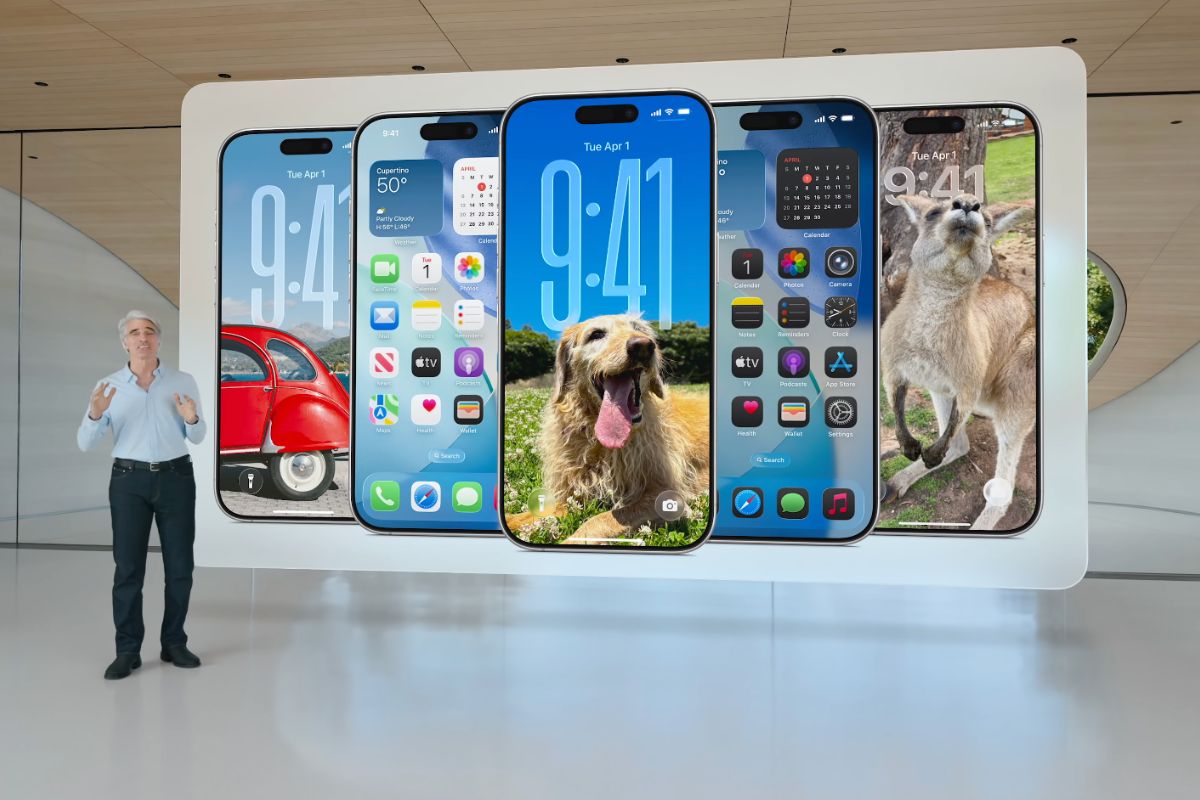
Changes to the iPhone Lock Screen are arguably iOS 16’s biggest new feature, bringing personalisation options that allow users to change the look of the date and time with type styles and colour choices, add widgets to the Lock Screen to get information at a glance, such as upcoming calendar events, the weather and battery levels, relocated notifications, and more.
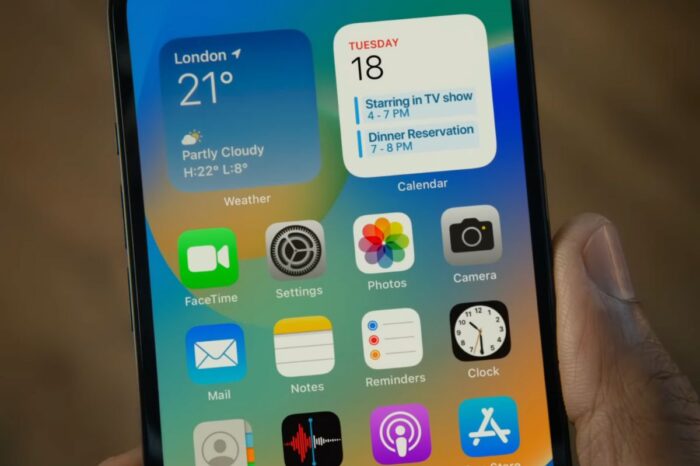
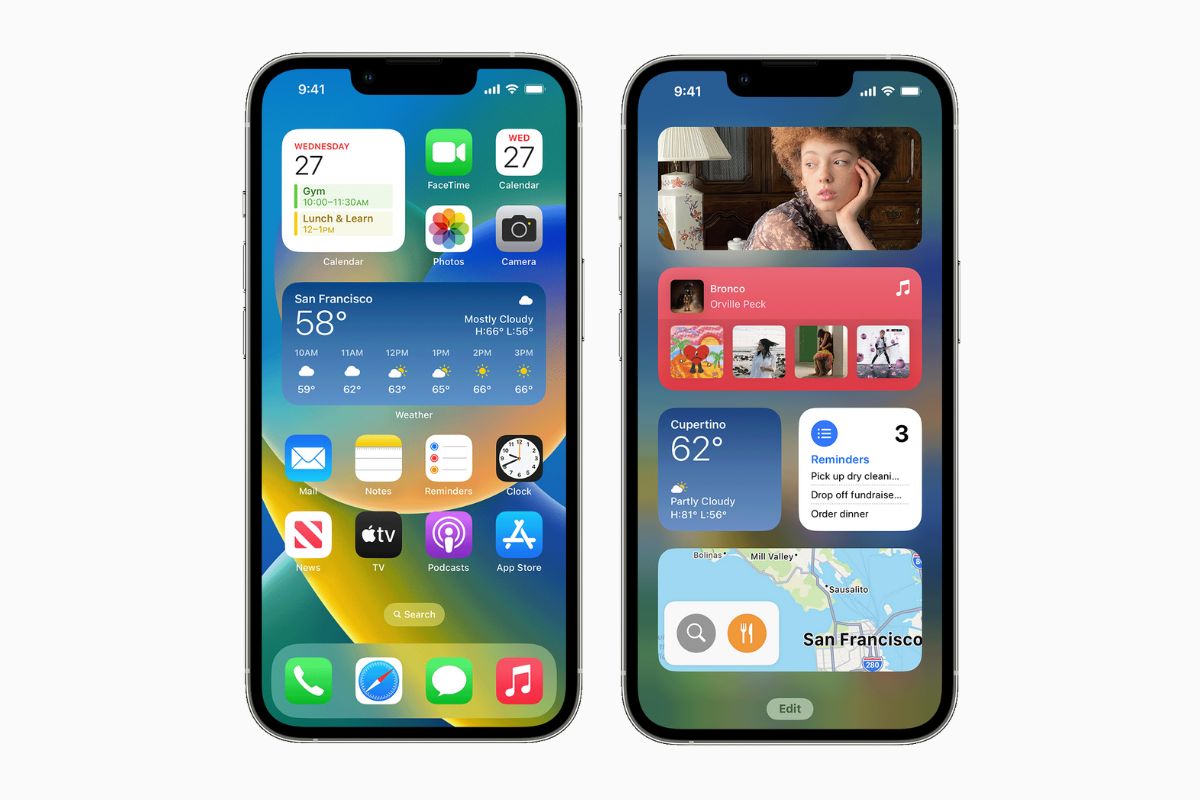
Widgets are glanceable snippets that offer information without having to enter an app. For example, the Weather widget shows the current temperature all the time on the Lock Screen without opening the Weather app, and the Calendar widget shows any upcoming events with a glance, without opening the Calendar app.
iOS 16 offers users a variety of widgets to choose from to customise their iPhone’s Lock Screen, many of which are available in various sizes with different information and layouts to select, including live news from Apple News, world clocks, battery statuses, stocks, reminders, and more.
How to add Lock Screen widgets in iOS 16
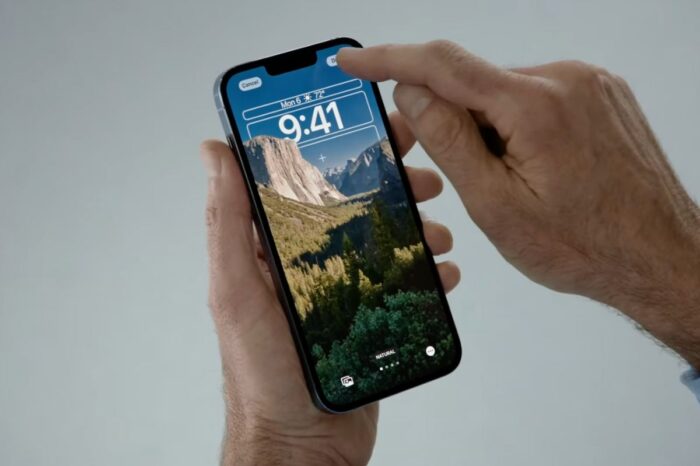
- On the Lock Screen, press and hold the background image until the Collections view appears
- Edit your Lock Screen by tapping the Customise button
- Select the highlighted Add Widgets box underneath the time on the Lock Screen
- Choose up to three Widgets to appear on the Lock Screen from the available options
- Either tap or drag the widgets from the list onto your Lock Screen
- Tap the background to close the widget list and press Done to save your custom Lock Screen
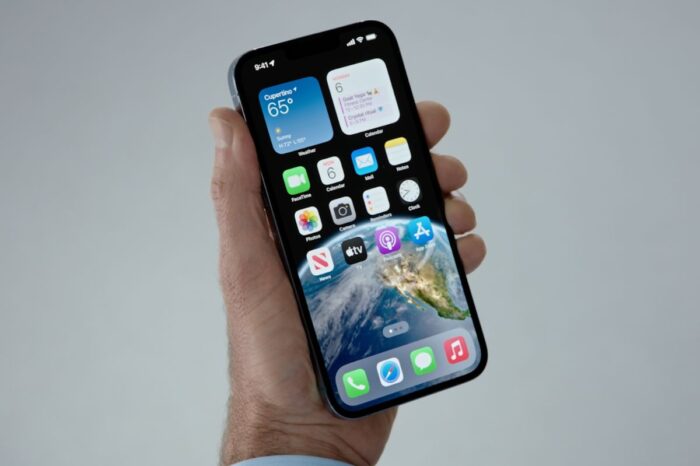
If you have changed the wallpaper for your Lock Screen and wish to use the same wallpaper on your Home Screen, tap Set as Wallpaper Pair when prompted.

Follow @TheApplePost on Twitter for the latest coverage and analysis on all things Apple. Read the day’s latest stories and stay on top of the latest Apple news, iPhone leaks and Mac rumors with the theapplepost.com app – available from the App Store.